Claude Code
Onboarding

Mathias Wendlinger

January 22, 2026

What We'll Cover

1

Introduction

How Claude Code works, the role of tools, and what makes it different from chatting with an LLM

2

Context Management

The /init command, CLAUDE.md files, and how to help Claude understand your project

3

Key Features

Working with images, planning mode, thinking modes, and essential keyboard shortcuts

4

Extensions

MCP servers for browser automation, GitHub integration, and more

What is Claude Code?

Claude Code is a command-line AI assistant that can read, write, and modify files in your projects.

Unlike chatting with Claude on the web, Claude Code has tools that let it actually interact with your codebase.

Think of it as having a coding partner who can see and edit your files directly.
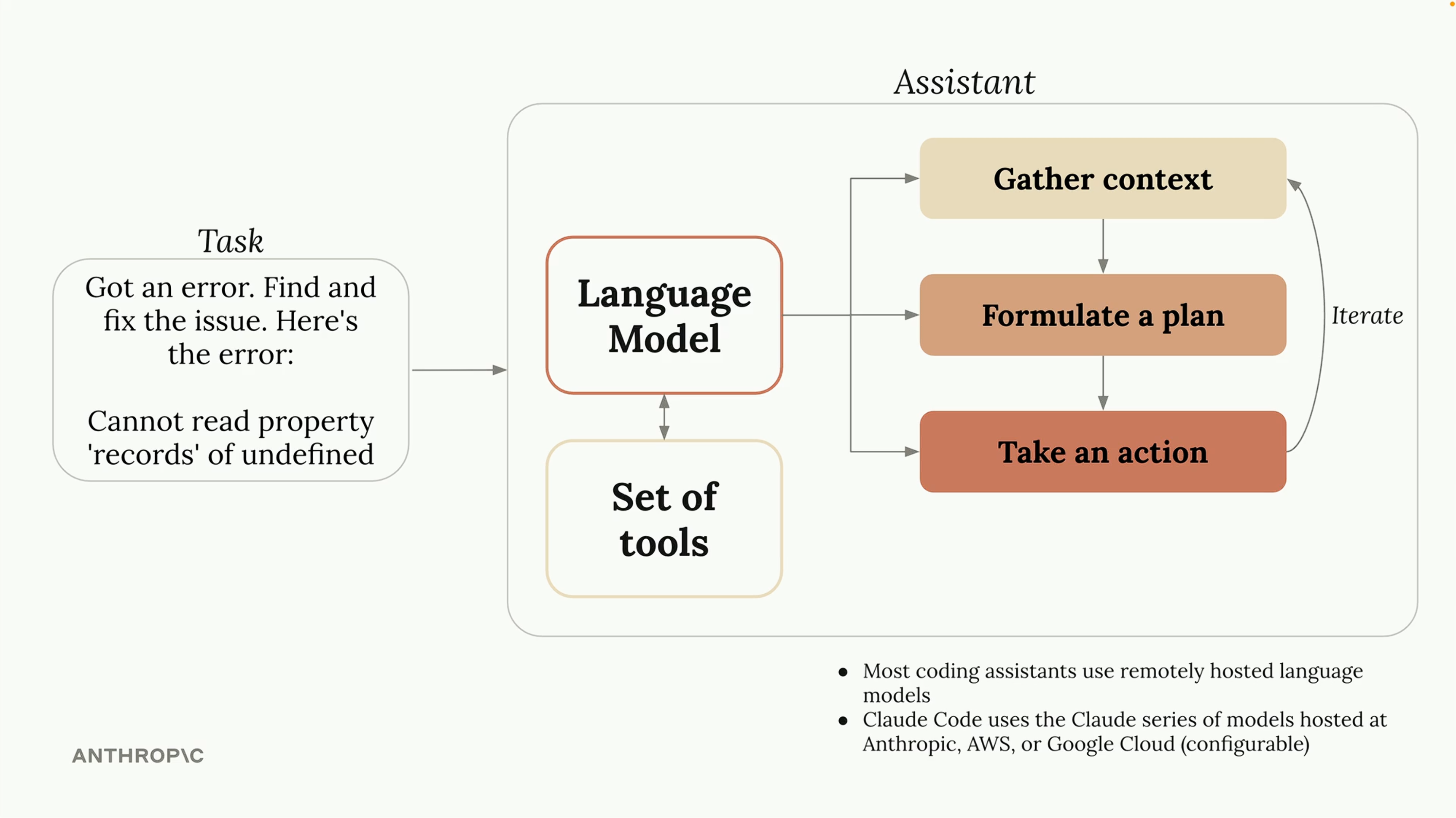
How coding assistants work

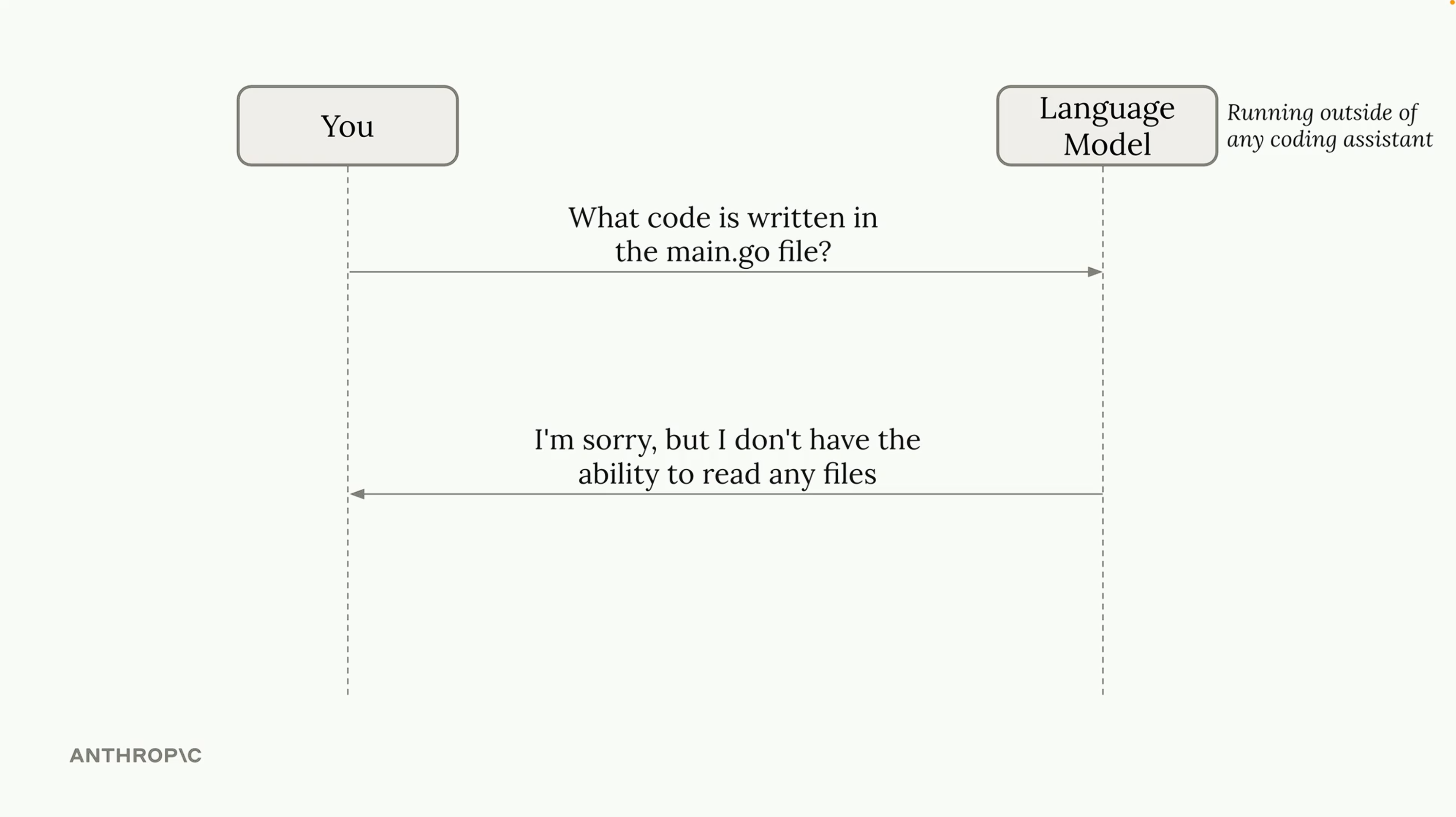
The Problem: LLMs Can't See Your Files

When you use Claude on the web (claude.ai), it cannot access any files on your computer.

If you ask "What's in my main.go file?" it has no way to know.

The language model is powerful, but isolated from your actual project.

LLM without file access

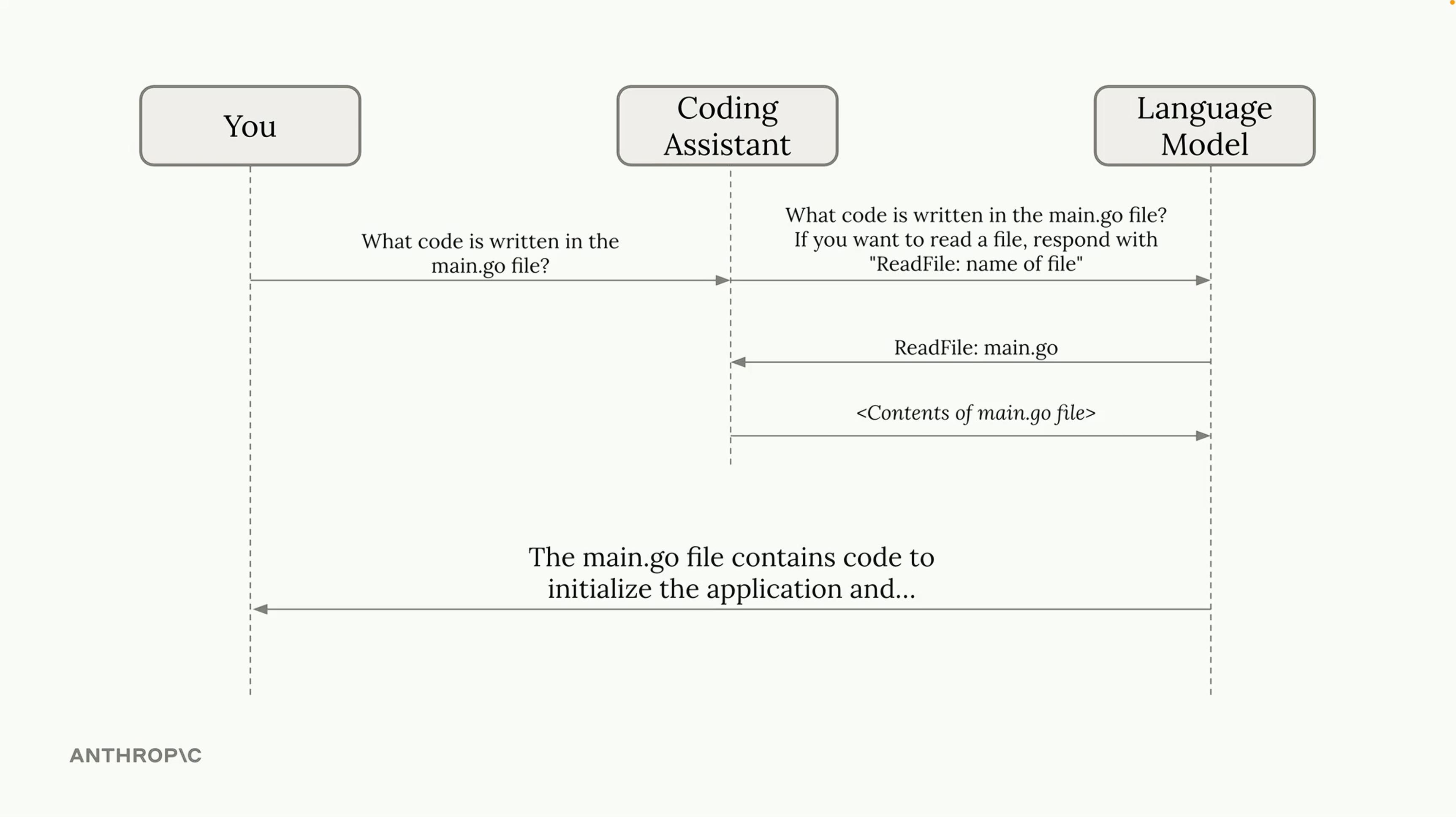
The Solution: Tools

Claude Code sits between you and the language model, providing tools that Claude can use.

When you ask about a file, Claude requests to read it, the tool fetches the content, and Claude can then answer.

This is called "tool use" - the model asks for actions, and the assistant executes them.

Coding assistant with tools

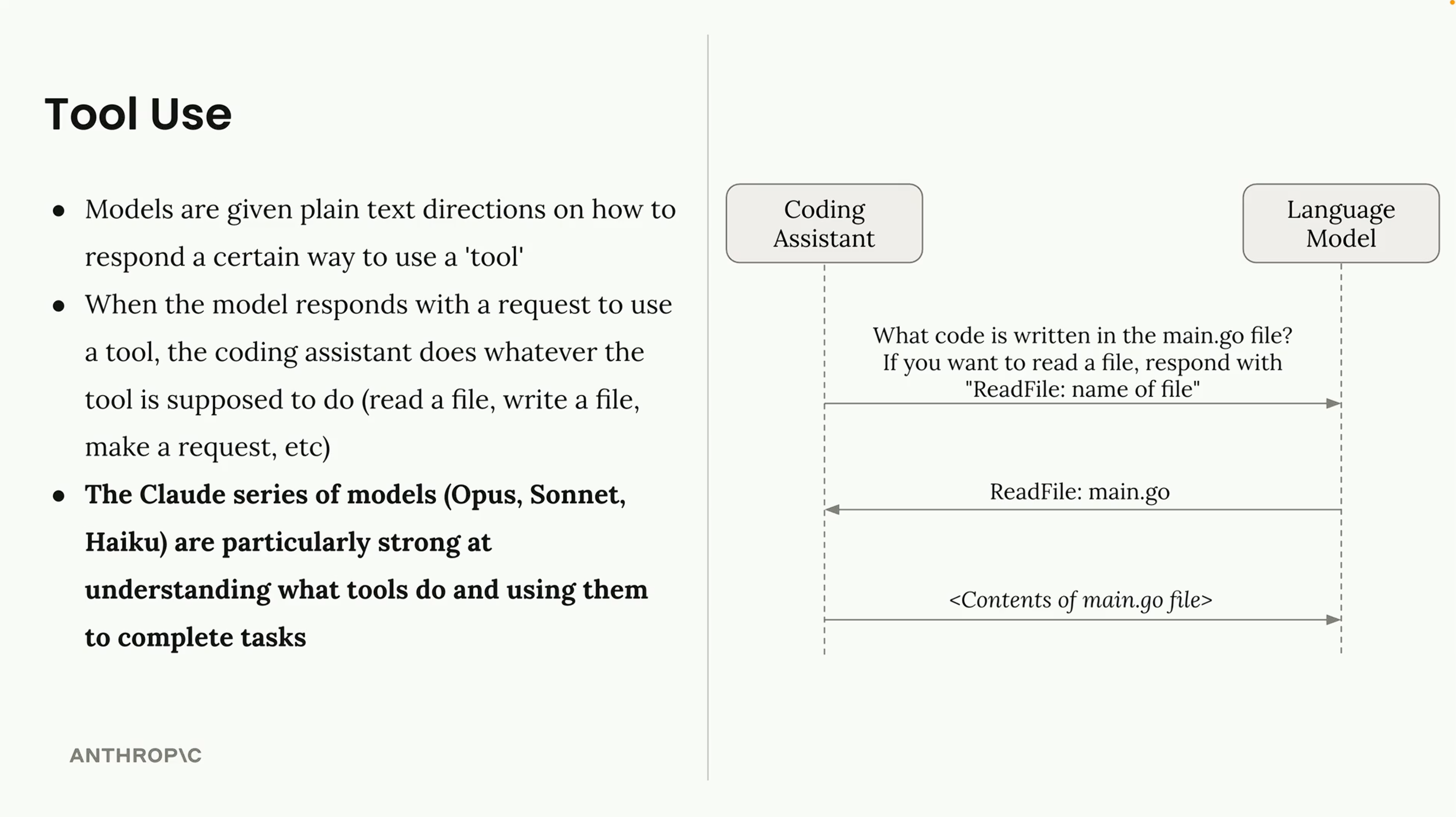
How Tool Use Works

  • Models receive plain text instructions on how to use tools
  • When Claude wants to use a tool, the assistant executes it
  • Results are sent back to Claude to continue working
  • Claude models (Opus, Sonnet, Haiku) are particularly good at this
Tool use explanation

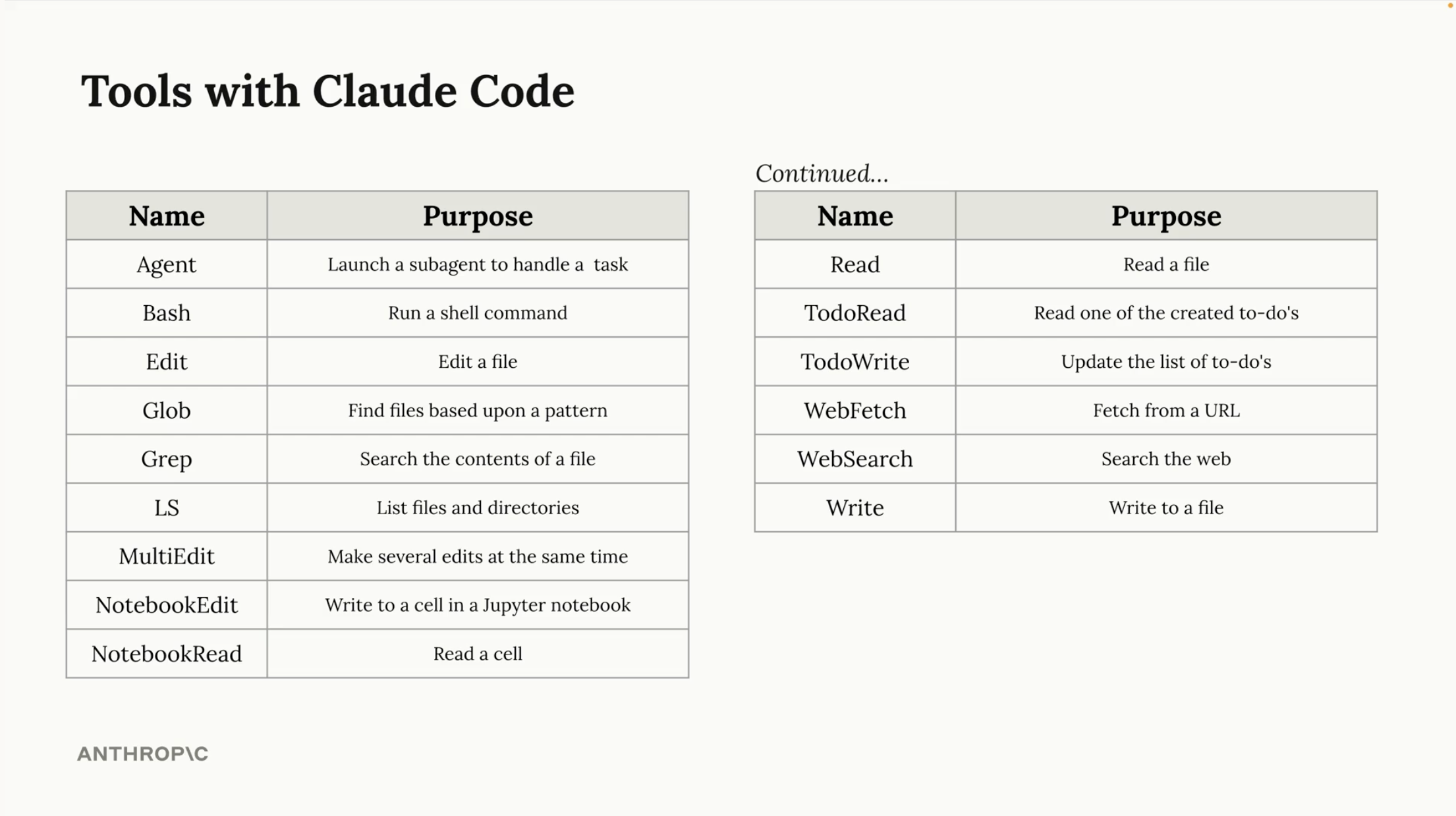
Tools Available in Claude Code

List of tools
Section 2

Context Management

How to help Claude understand your project

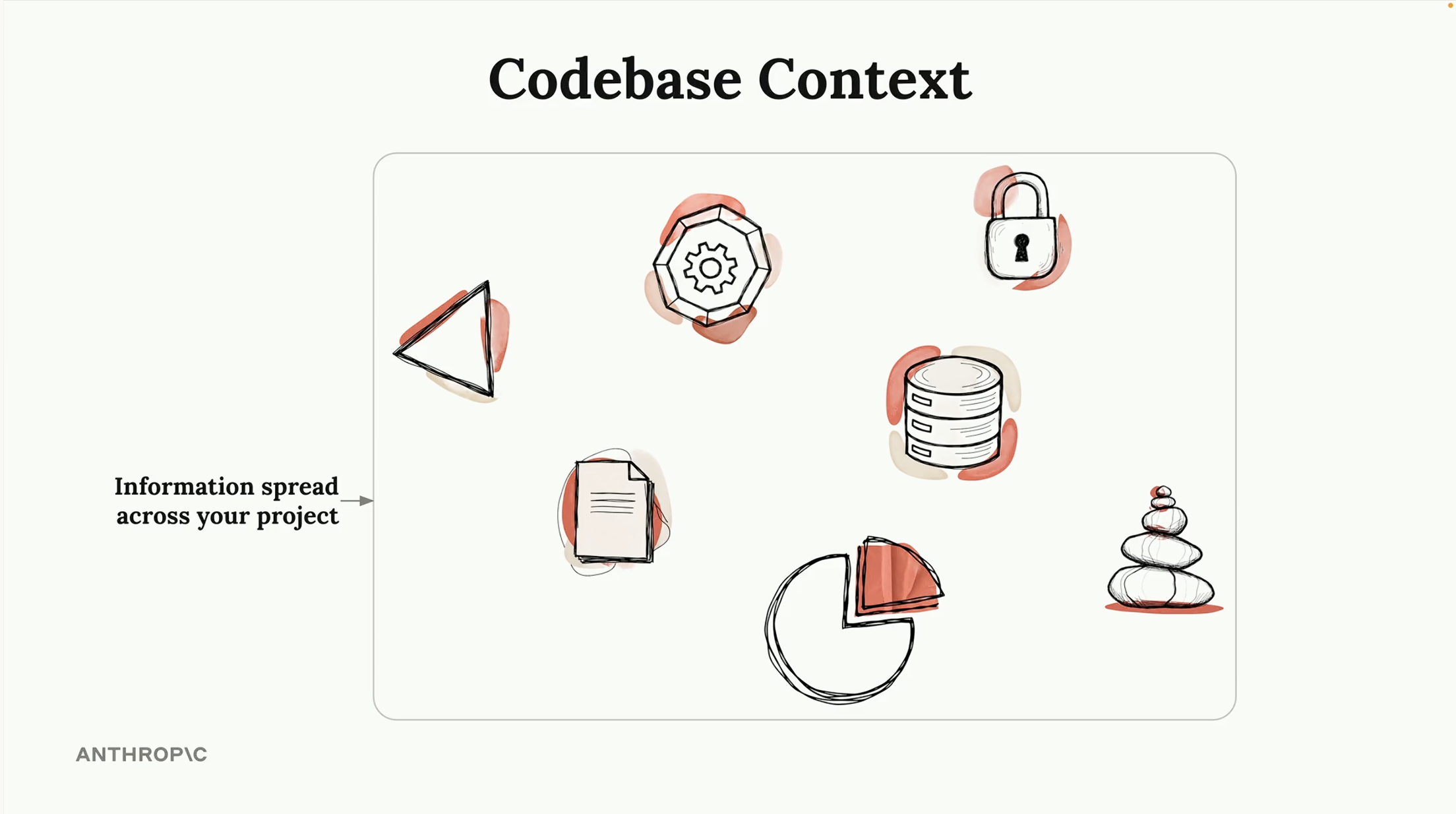
Codebase Context

Your project's context is scattered across many files and folders.

Claude needs a way to quickly understand what matters without reading everything.

Codebase context spread

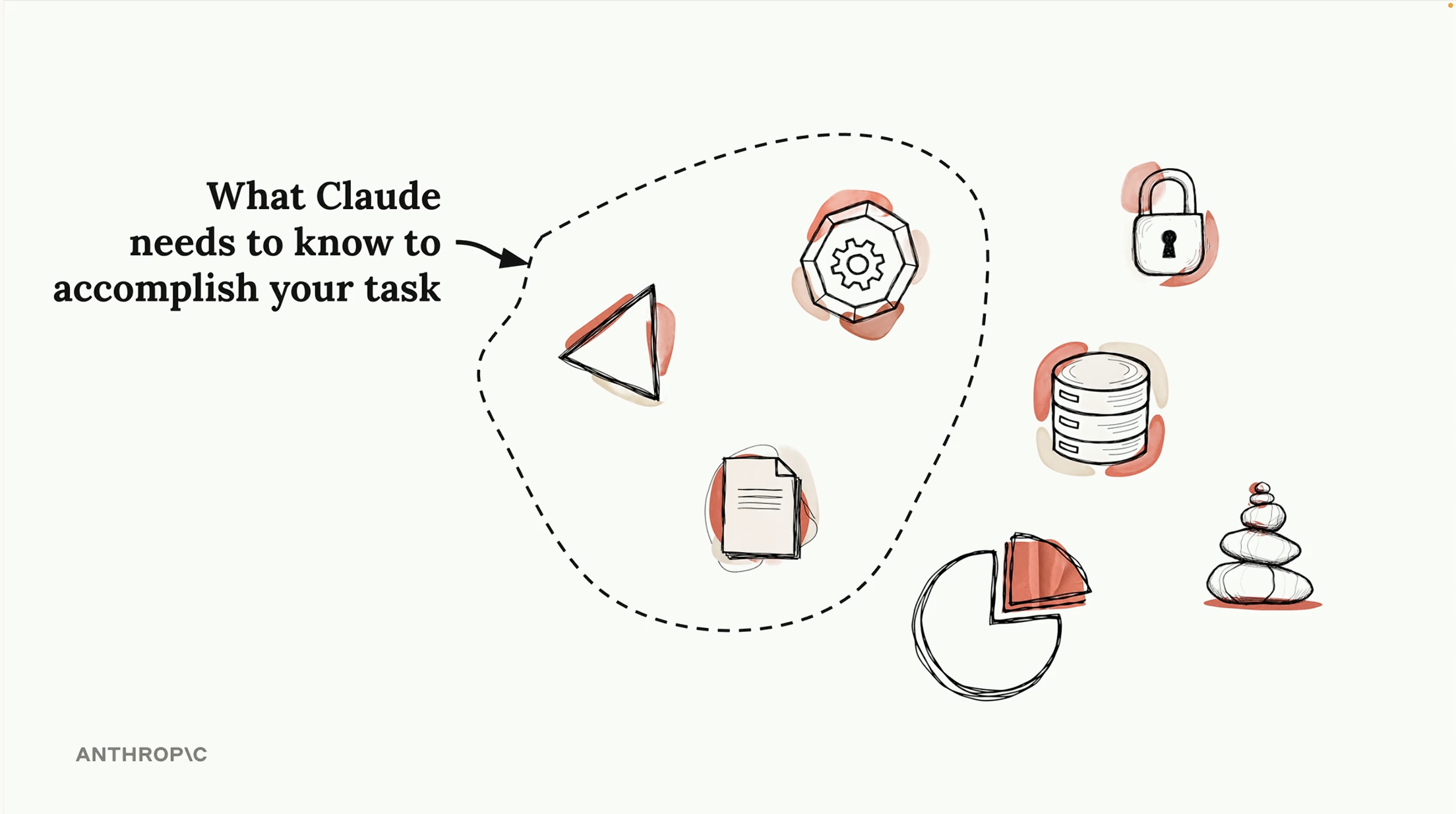
What Claude Needs to Know

For Claude to help effectively, it needs context about your project:

  • Project structure and architecture
  • Important commands to run
  • Coding style and conventions
  • Dependencies and configurations
What Claude needs to know

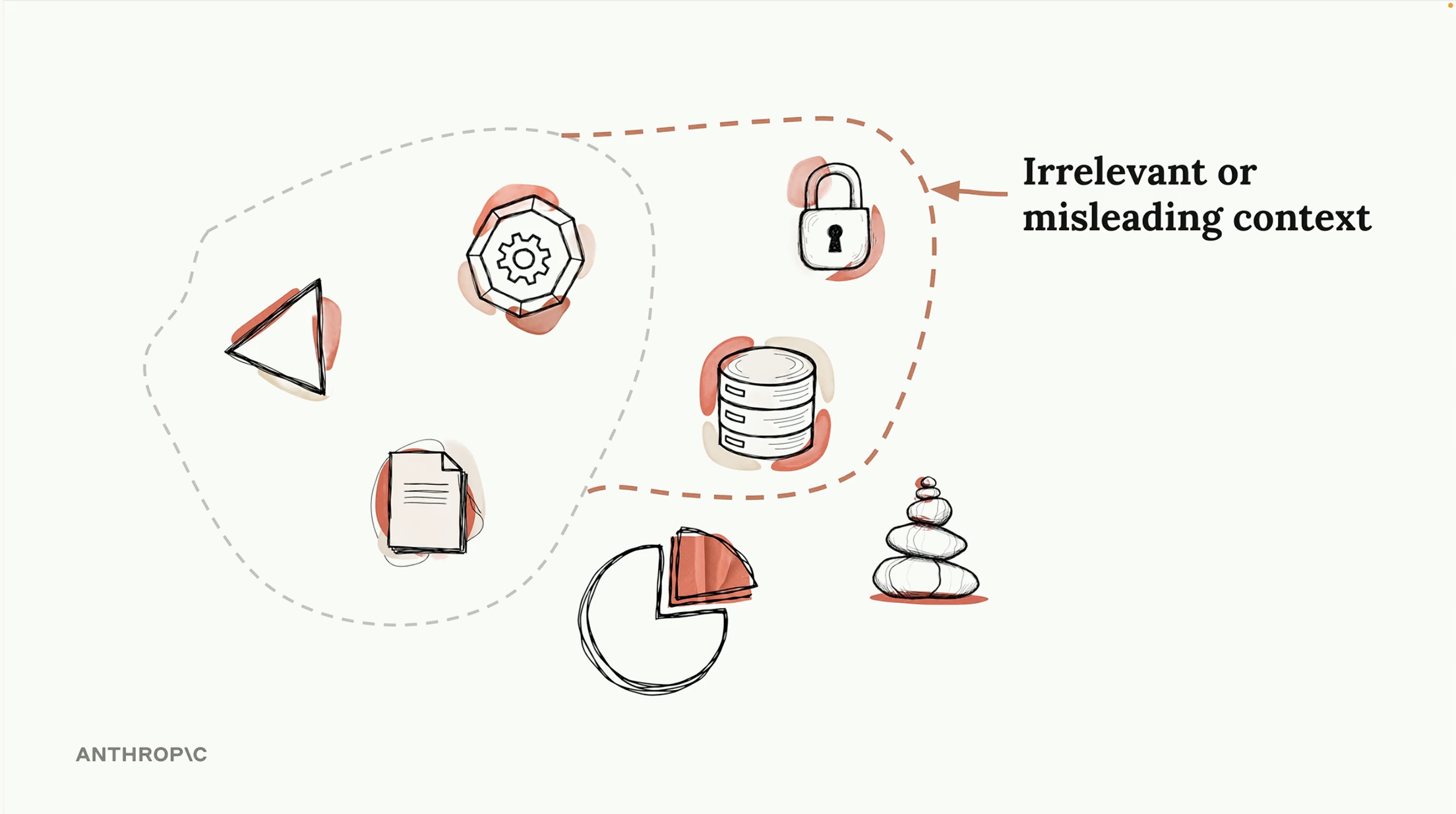
Too Much Context = Confusion

Giving Claude irrelevant or misleading context can hurt its performance.

The key is providing the right information, not all the information.

Quality over quantity when it comes to context.

Irrelevant context

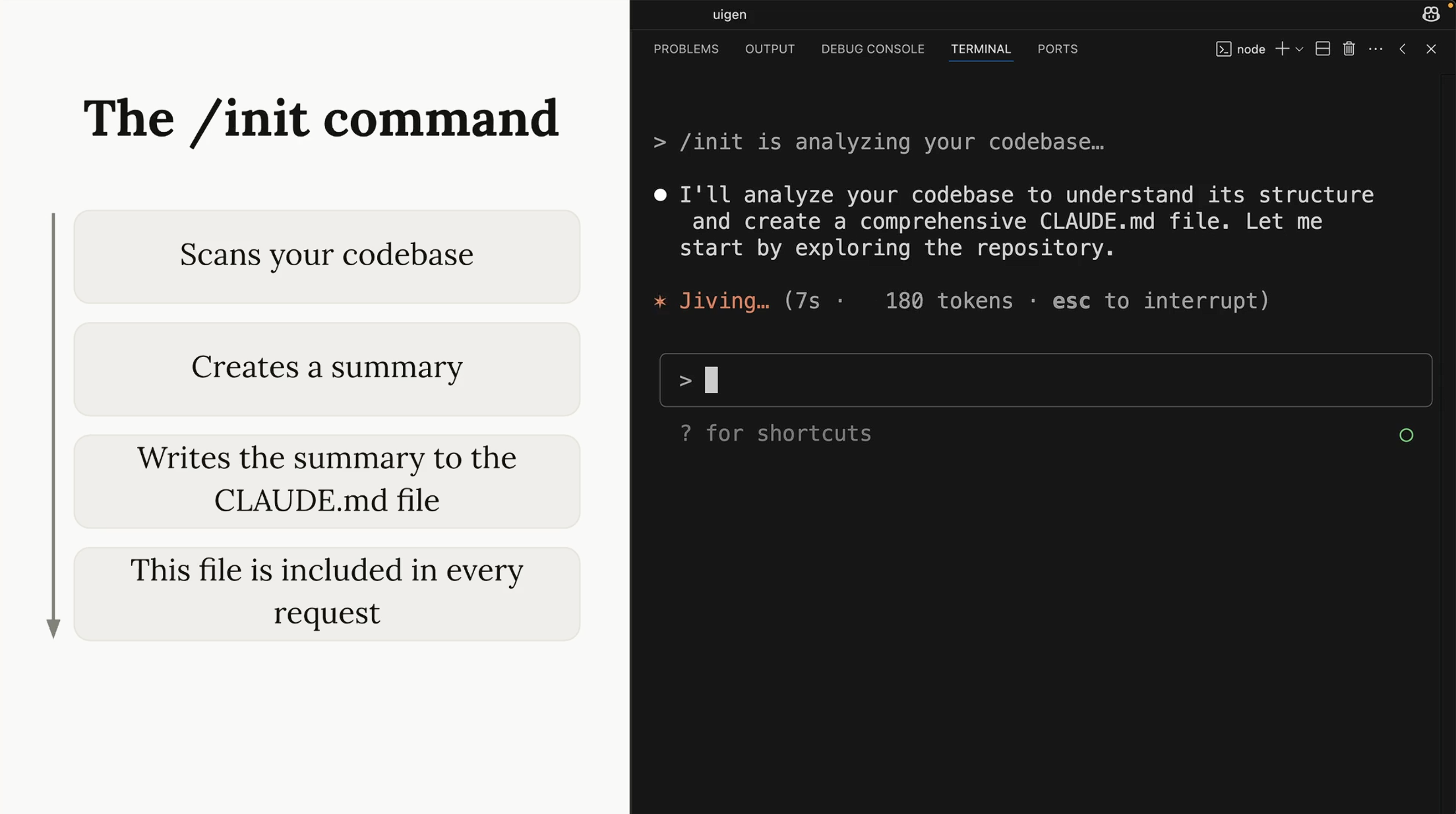
The /init Command

Run /init when starting a new project with Claude Code.

  • Scans your entire codebase
  • Creates a summary of the project
  • Writes it to a CLAUDE.md file
  • This file is included in every request
The /init command

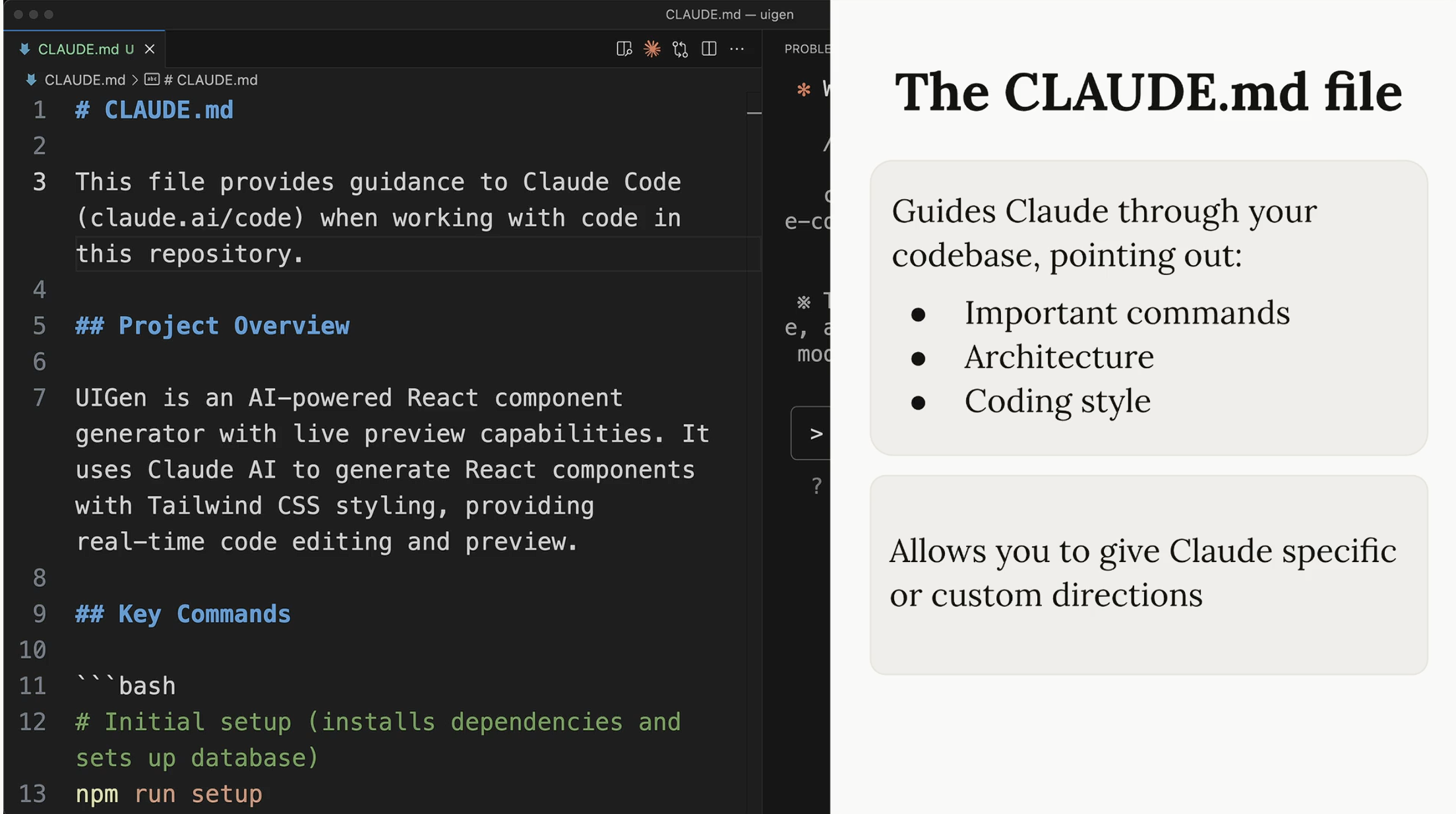
The CLAUDE.md File

This file guides Claude through your codebase:

  • Important commands (build, test, deploy)
  • Architecture overview
  • Coding style preferences
  • Custom directions for your project
CLAUDE.md file

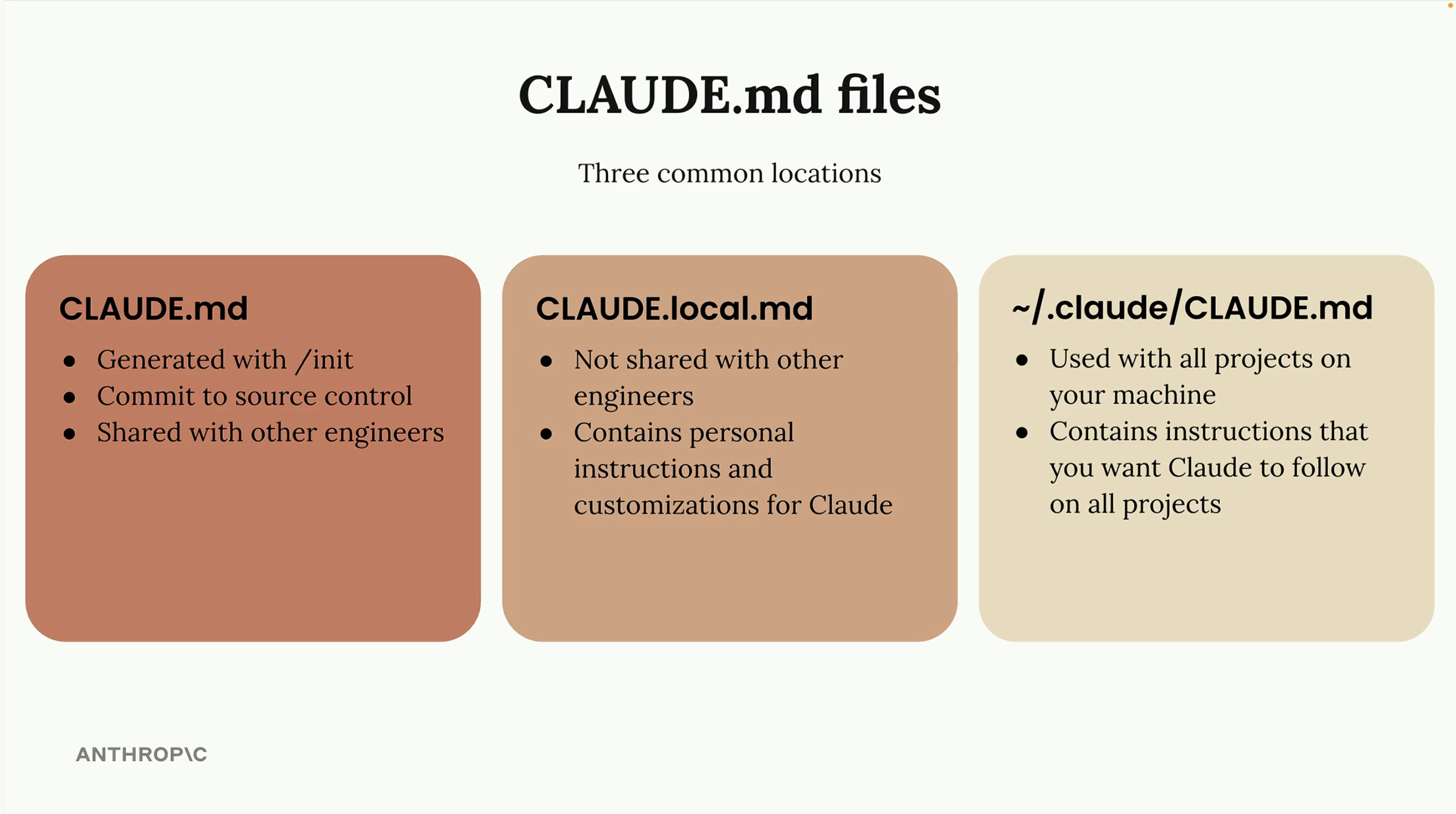
Three CLAUDE.md Locations

CLAUDE.md file locations

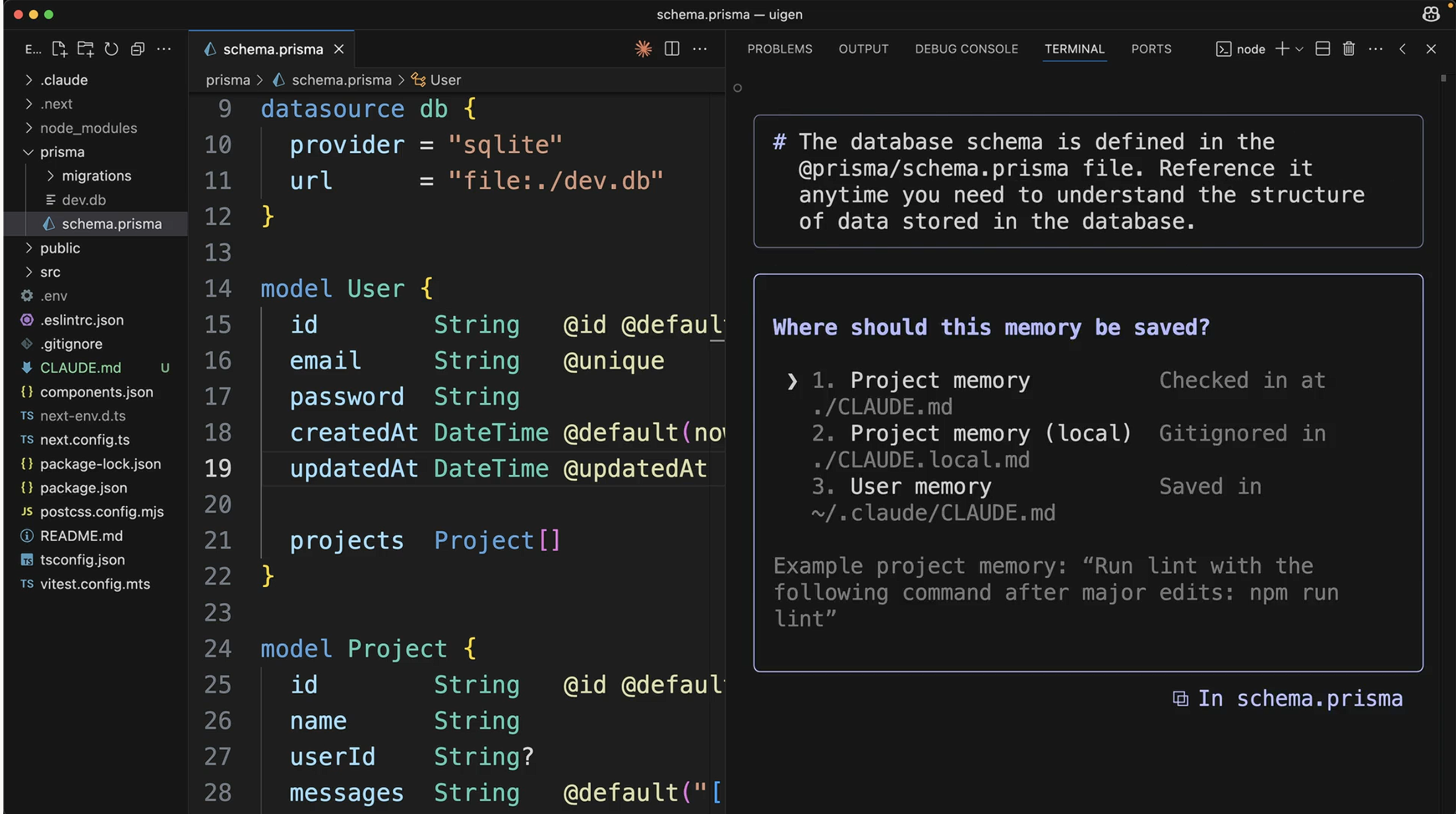
Saving Project Memories

Claude can remember things between sessions by saving to CLAUDE.md files.

Use the # prefix to tell Claude to remember something:

# Always run npm run lint before committing

Memory saving
Section 3

Key Features

Essential shortcuts and modes to know

Working with Images

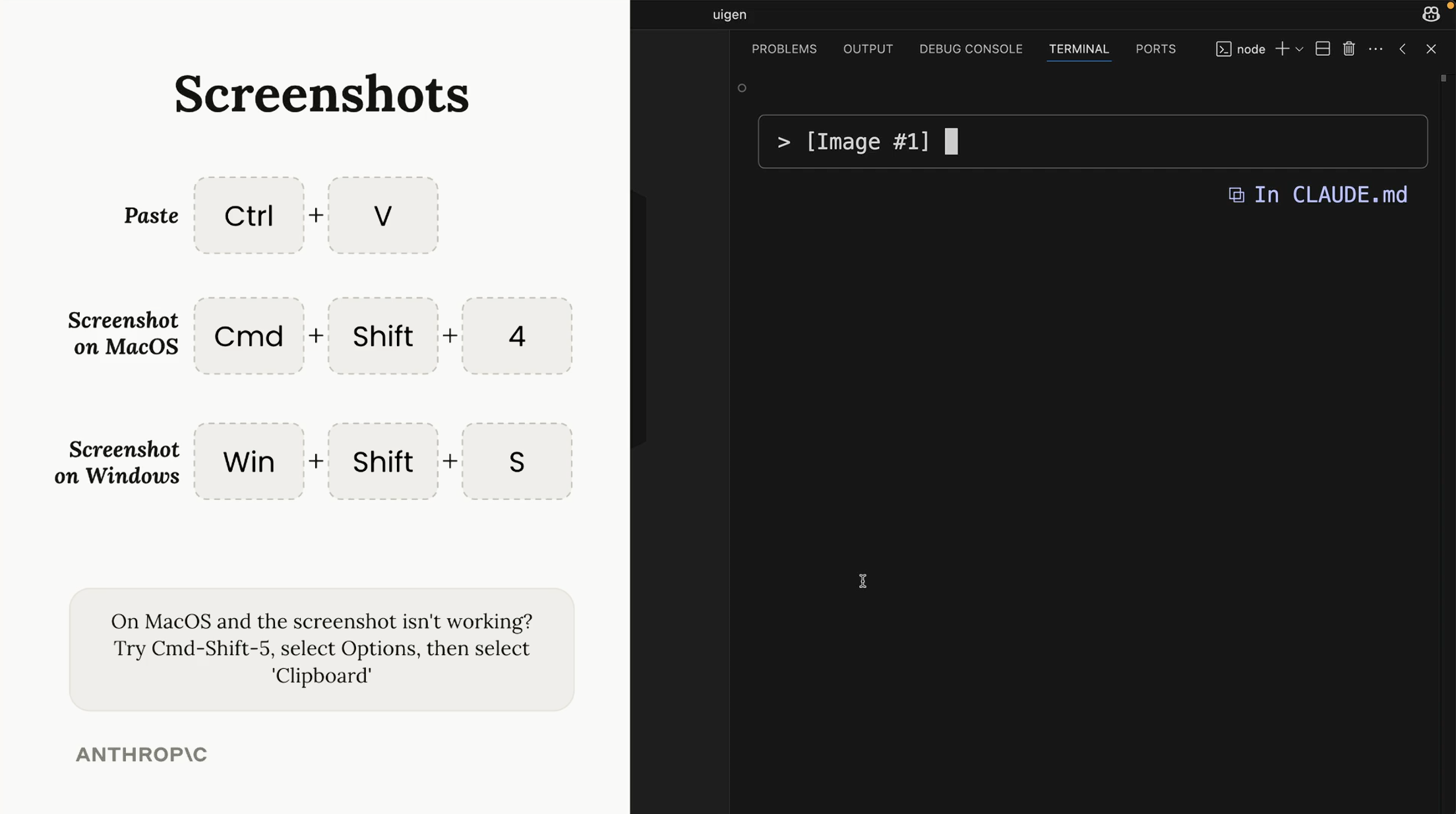
Claude Code can see and understand images! This is great for designers.

Ctrl + V
Paste image from clipboard
Cmd + Shift + 4
Screenshot on macOS
Win + Shift + S
Screenshot on Windows
Screenshot shortcuts

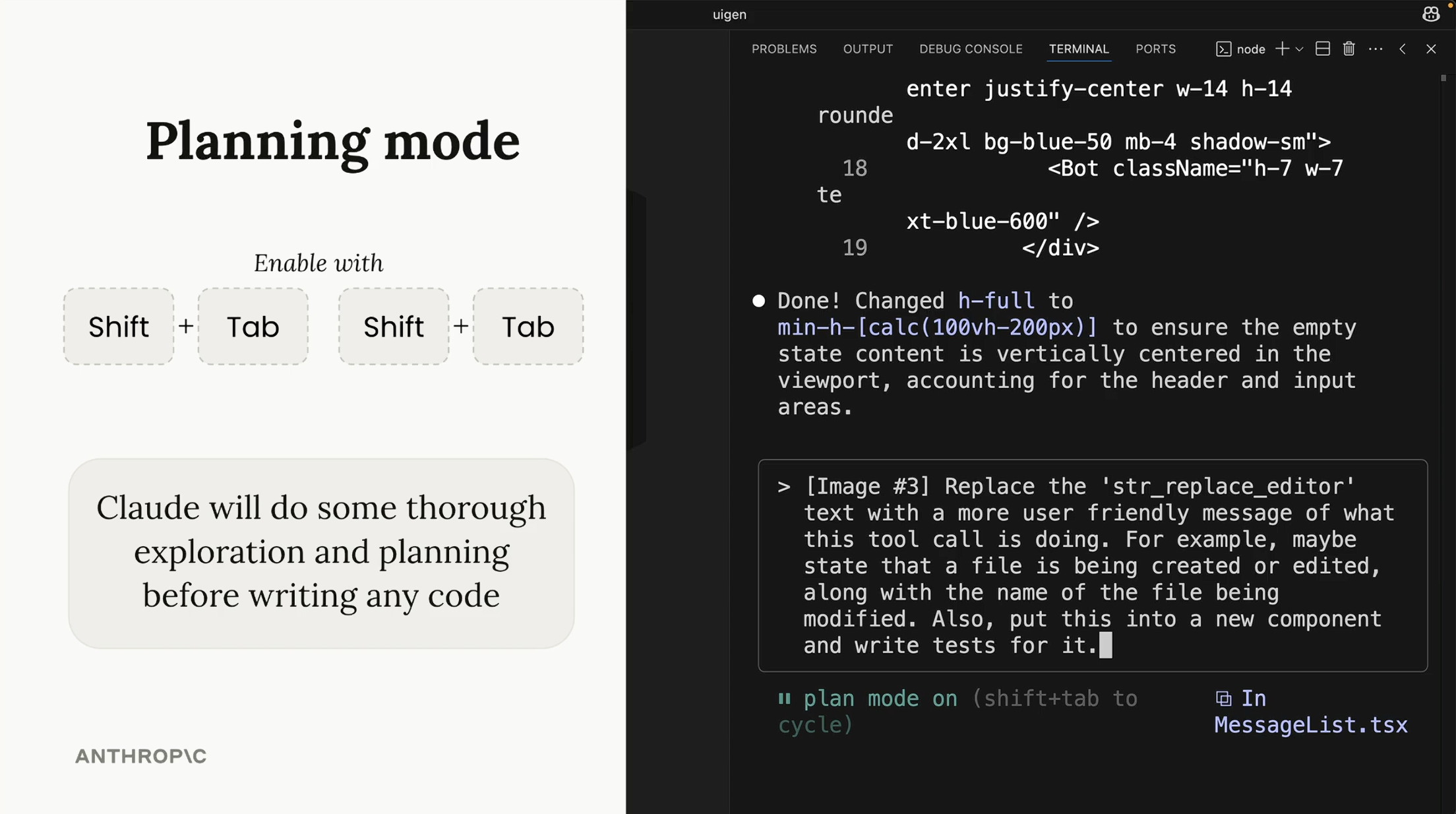
Planning Mode

For complex tasks, activate Planning Mode:

Shift + Tab Shift + Tab
Toggle planning mode

Claude will do thorough exploration and planning before writing any code.

Planning mode

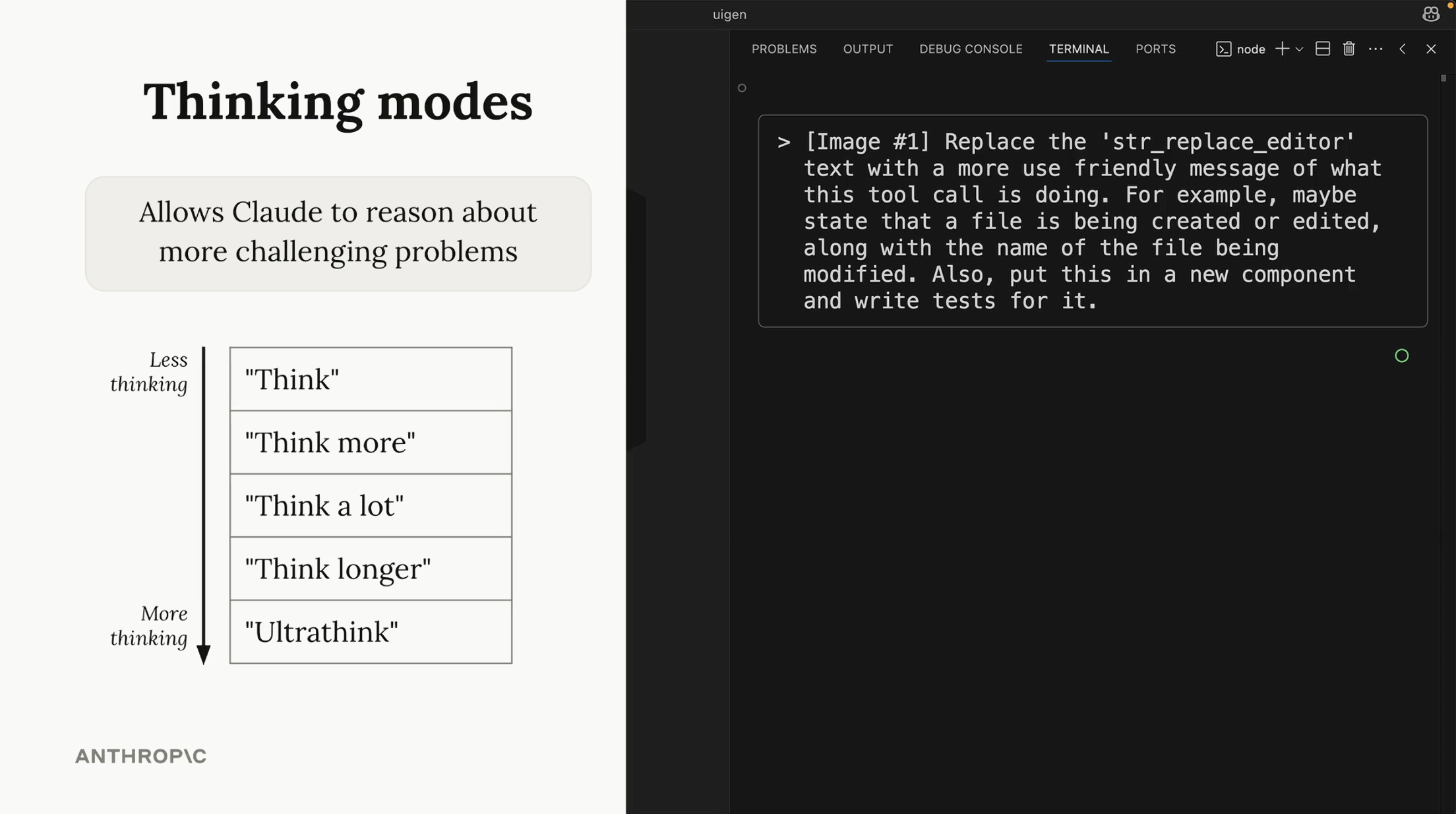
Thinking Modes

For challenging problems, ask Claude to think more deeply:

  • "Think" - Basic reasoning
  • "Think more" - Deeper analysis
  • "Think a lot" - Extended reasoning
  • "Think longer" - Very thorough
  • "Ultrathink" - Maximum depth
Thinking modes

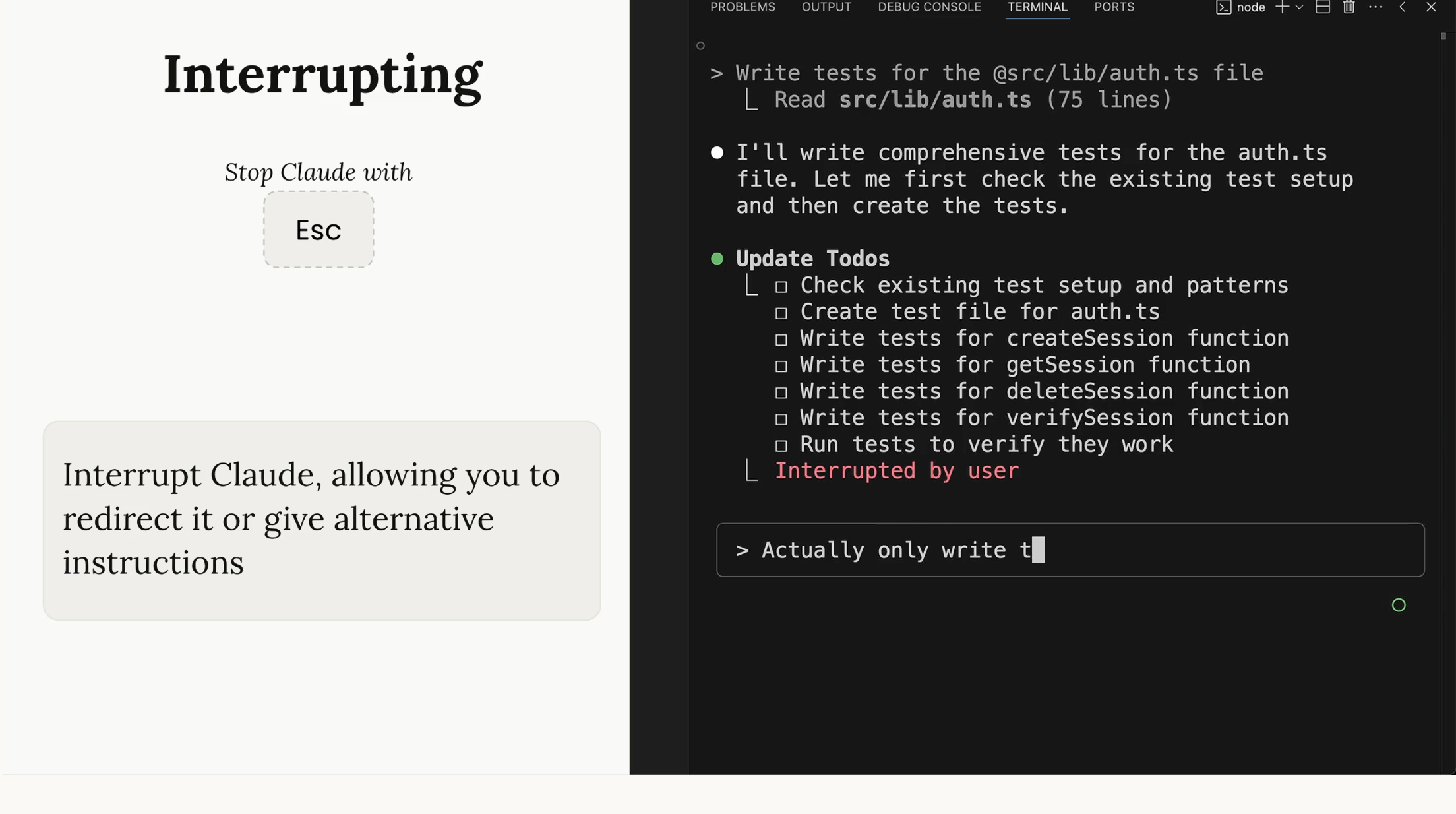
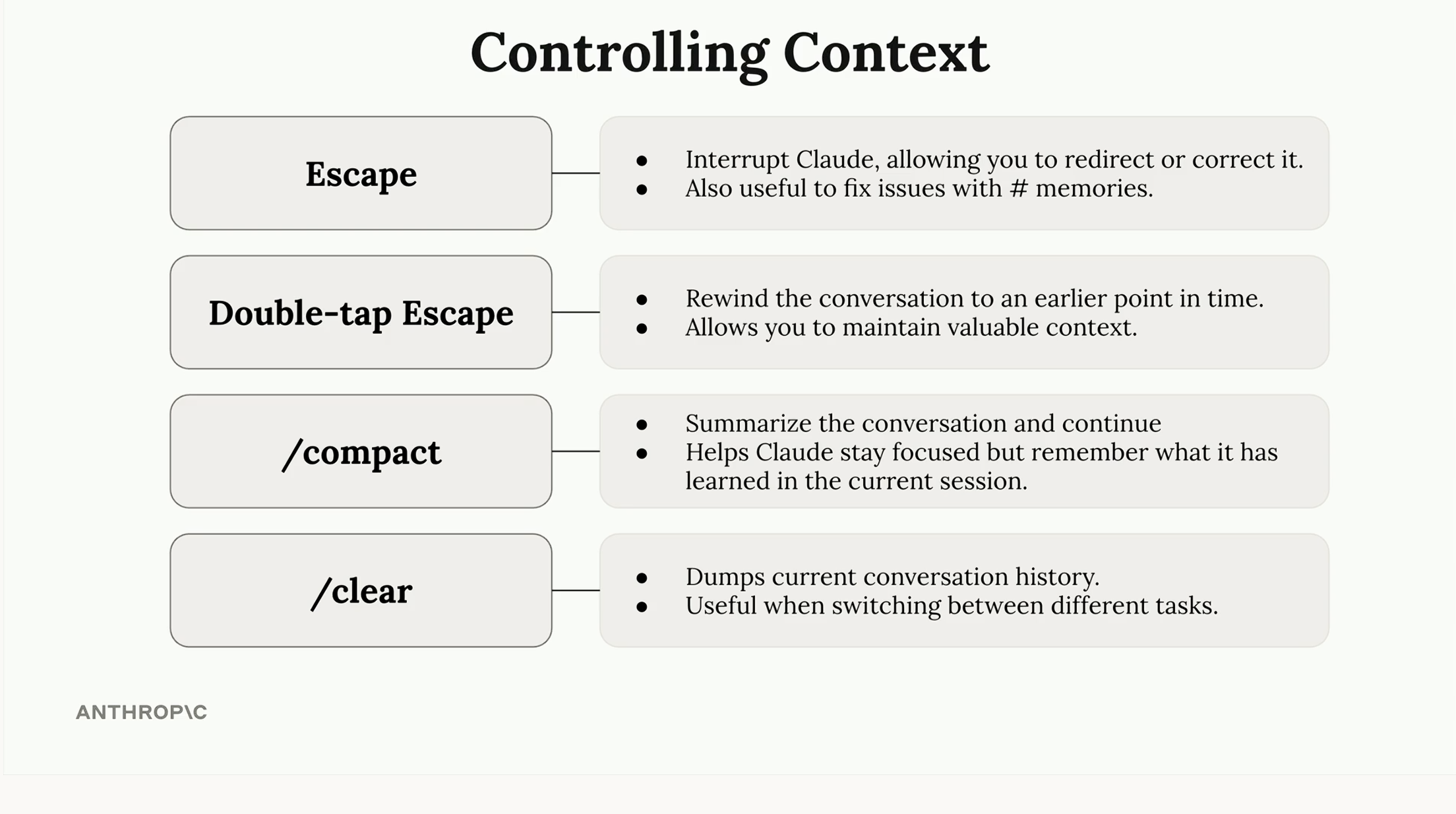
Interrupting Claude

You can stop Claude at any time:

Esc
Stop Claude immediately

Useful when Claude is going in the wrong direction. You can redirect and give new instructions.

Interrupting

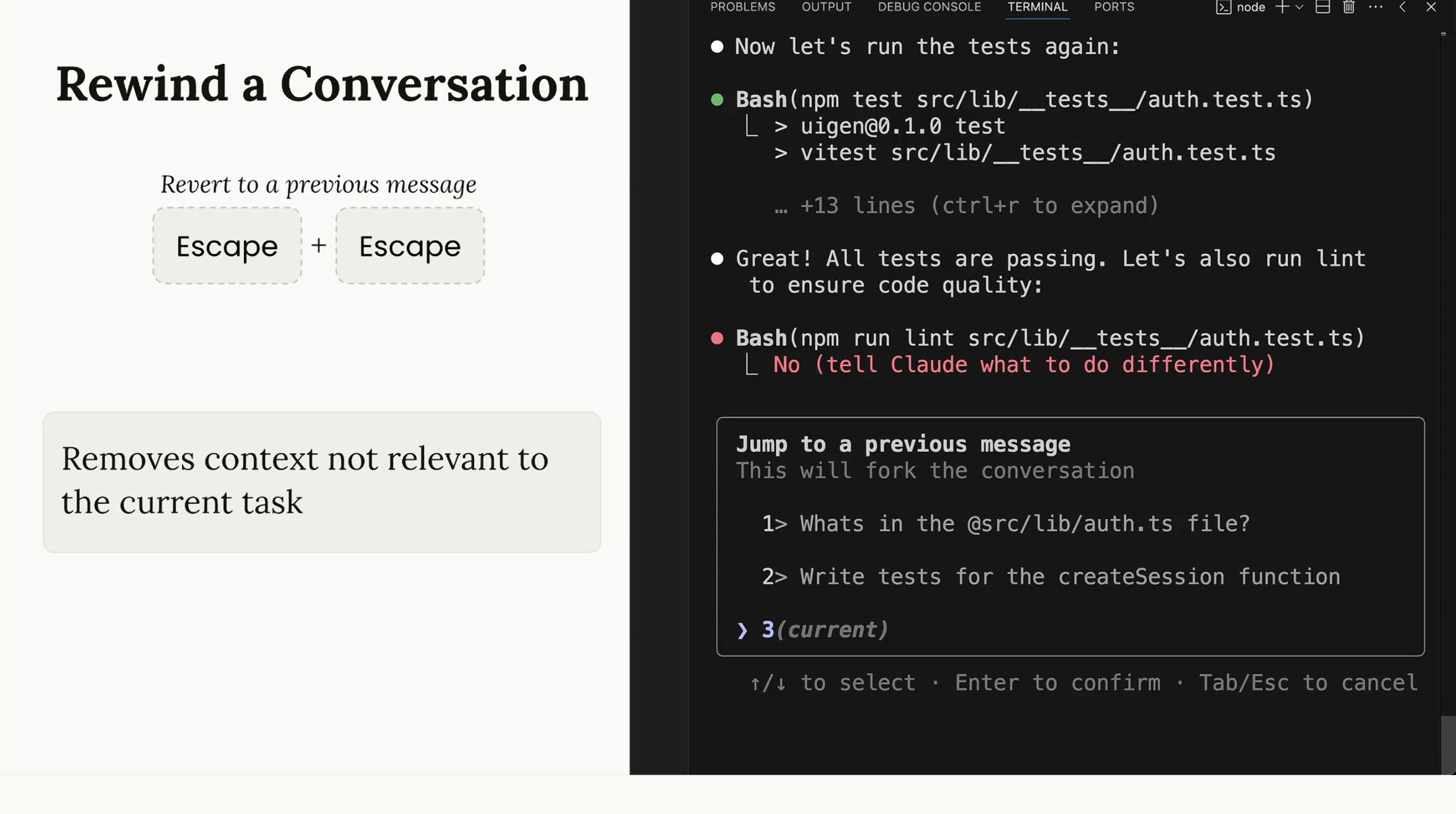
Rewinding the Conversation

Made a wrong turn? Go back in time:

Esc + Esc
Rewind to earlier message

This removes irrelevant context and lets you maintain focus on what matters.

Rewind conversation

Context Control Summary

Controlling context
Section 4

Extending Claude Code

MCP Servers add new capabilities

MCP Servers

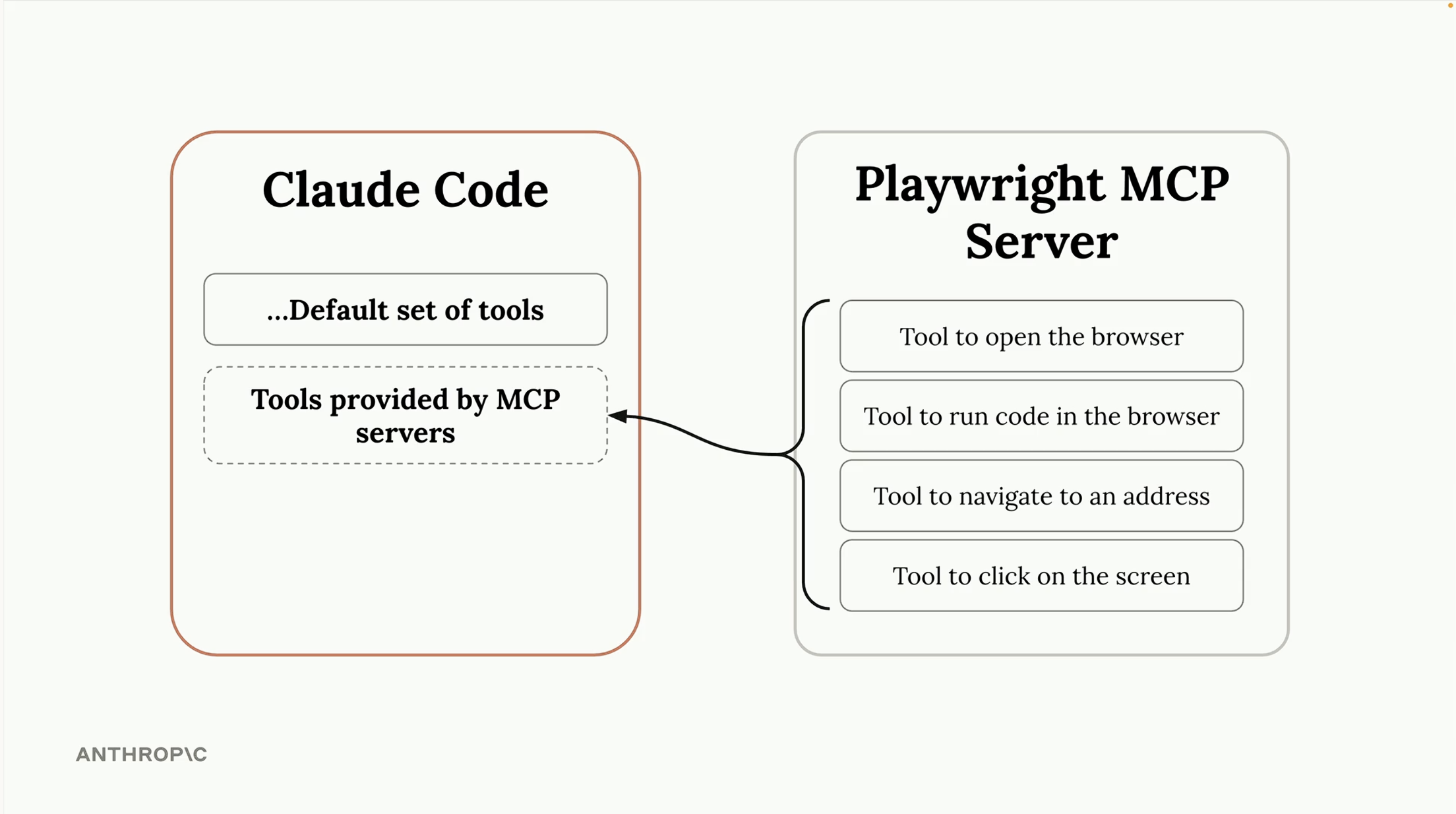
MCP (Model Context Protocol) lets you add new tools to Claude Code.

For example, the Playwright MCP Server gives Claude the ability to:

  • Open a browser
  • Navigate to URLs
  • Take screenshots
  • Click on elements
MCP Servers

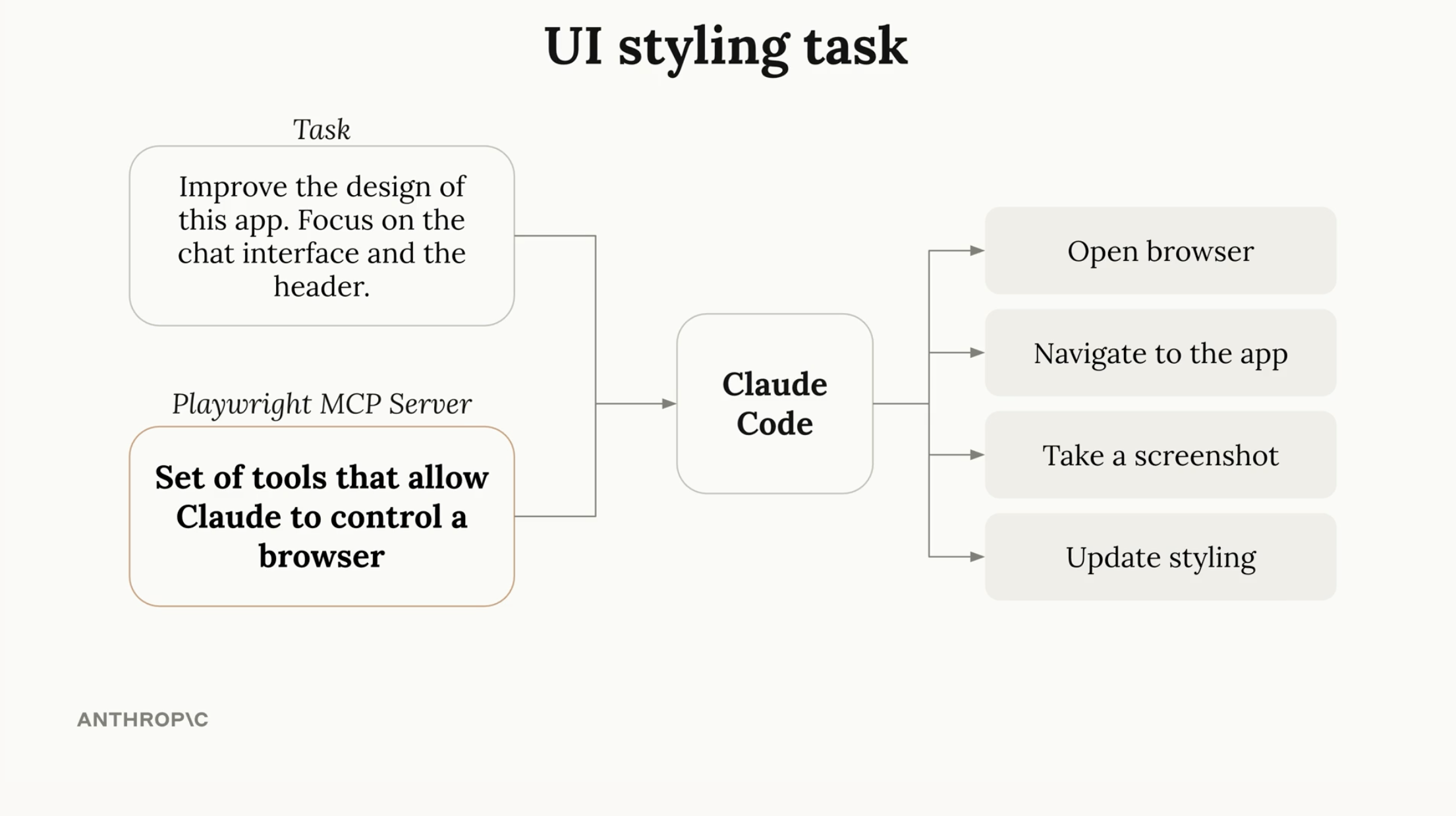
Example: UI Styling with Browser

With the Playwright MCP, Claude can:

  • Open your app in a browser
  • Take a screenshot
  • See the current design
  • Make styling changes
  • Verify the results visually

Perfect for designers working on UI improvements!

UI Styling task

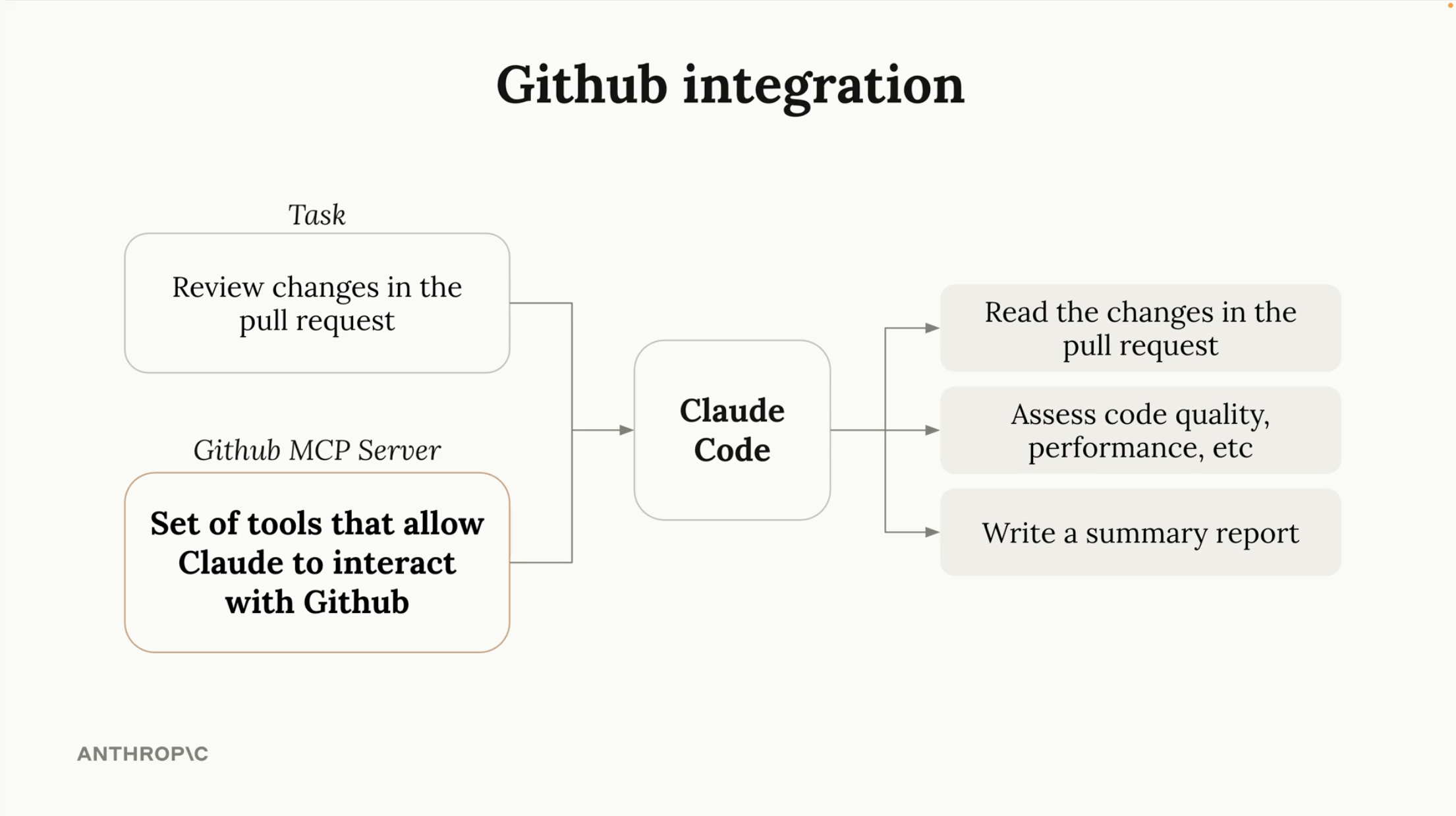
GitHub Integration

With the GitHub MCP Server, Claude can:

  • Read pull request changes
  • Assess code quality
  • Write review summaries
  • Create and manage issues
GitHub integration

Quick Reference Card

/init

Initialize Claude with your project context

/compact

Summarize conversation to save context

/clear

Start fresh with a new conversation

Esc

Stop Claude and redirect

Esc + Esc

Rewind to an earlier message

Shift+Tab x2

Toggle planning mode

Ctrl+V

Paste image for Claude to see

"Ultrathink"

Deep reasoning for hard problems

Questions?

Let's explore Claude Code together